Why Genjutsu Changes Faces and How to Prevent It
Did your face look different in a Genjutsu Motion Transfer video? Learn the reasons why and get 8 practical tips to keep your face consistent.
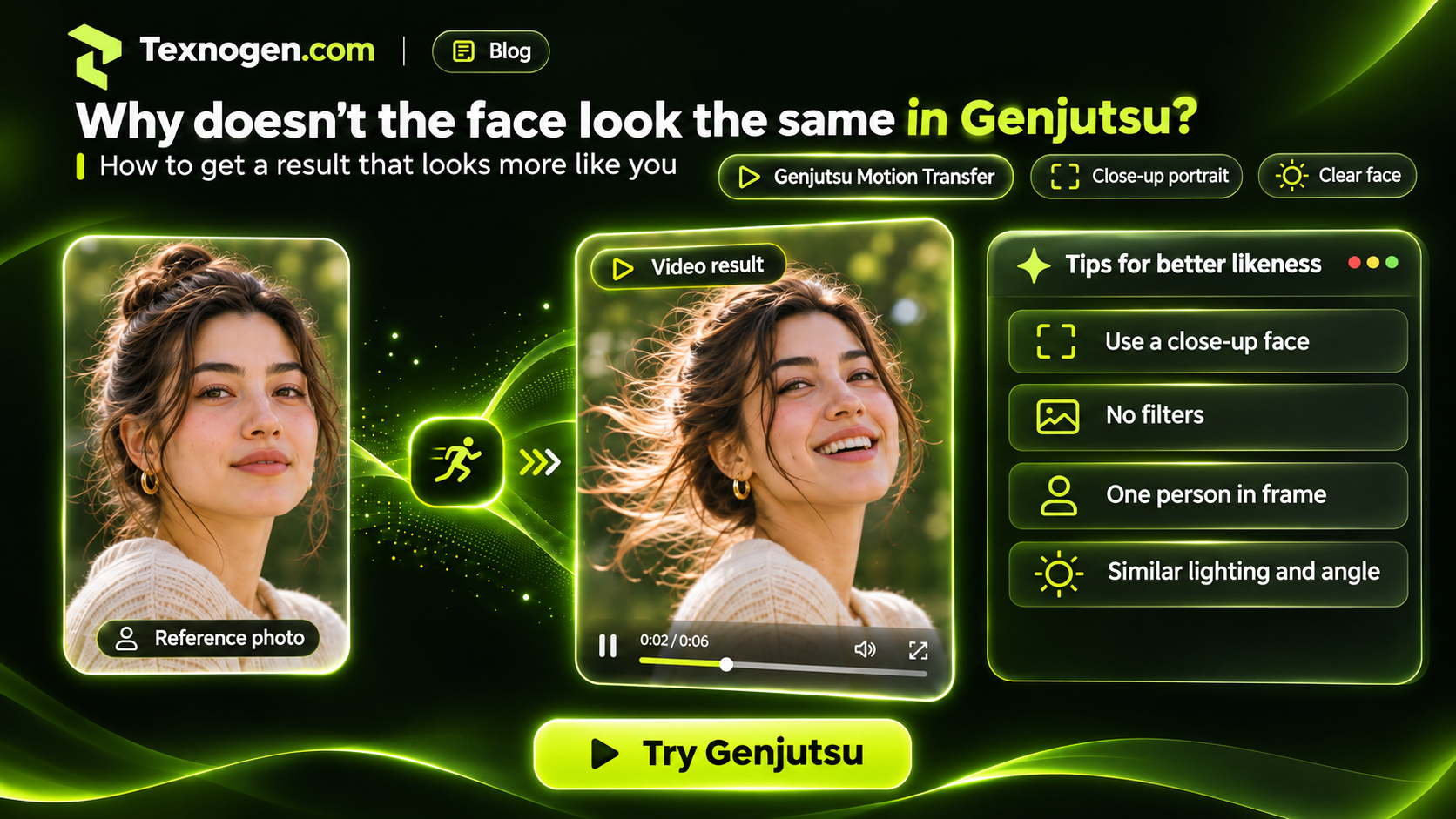
You used Genjutsu to put yourself in a video, and the movements turned out great—but your face doesn't quite look like you. This is one of the most frequently asked questions. The good news is that this is often not a bug, but rather how the model works, and you can significantly improve the results by choosing the right source material. Below, we explain the reasons and how to solve them.
How Does Genjutsu Work?
Genjutsu Motion Transfer is a video model from Higgsfield. It preserves the motion, camera, and timing from an existing video, then reconstructs the person or scene in the video based on the image you provide.
Important point: The model doesn't "cut out" your face from the image and paste it onto the video. It tries to understand your appearance from the image and redraws the face in each frame. The less information there is in the image, the more the model "invents" things—and the less your face will resemble you.
Why Does the Face Change?
1. The Face in the Image is Too Small or Far Away
This is the most common reason. If the image shows a full-body shot of a person from a distance, the face might only occupy a few dozen pixels. The model cannot accurately see the shape of the eyes, nose, and lips, and draws them approximately.
2. Different Lighting or Angle Between Image and Video
If the image was taken in a studio with front lighting, but the video was shot outdoors with backlighting from the sun, the model has to adapt the face to the new lighting. This can also reduce resemblance.
3. The Face Turns Sideways or Moves Quickly in the Video
If the image only shows your face from the front, the model doesn't know what you look like from the side. If your head turns sharply in the video, your face might change in profile. Faces and hands are where these models most often produce errors.
4. The Face is Obscured by Something
Glasses, hands, hair, masks, hats, or strong shadows can hide parts of the face. The model will then guess the hidden parts.
5. Low Image Quality
A blurry, compressed, filtered, or heavily retouched image gives the model incorrect information. For example, a "beauty filter" changes the face shape, and the model will draw that altered face.
6. Multiple People in the Video
If there are multiple people in the frame, the model might get confused about who to replace or blend faces.
7. Changing Too Many Things at Once
If you try to change the person, clothing, and location all in one go, it becomes difficult for the model, and it's hard to pinpoint which change caused the problem.
8 Tips to Preserve Your Face
- Choose an image where the face is close up. A portrait from the shoulders up gives the best results. Make sure the face occupies a large part of the frame.
- Upload a high-quality, unfiltered image. A photo taken with a regular phone camera in good lighting is sufficient. If the image is blurry, first Upscale it to sharpen it.
- Ensure the face is fully visible. No glasses, hats, hands, or hair should obscure the face.
- Match the lighting and angle to the video. If the video was shot outdoors, it's best if the image also has natural daylight. If the person in the video is slightly angled, choose an image with a similar angle.
- Select a simple video. There should be only one person in the frame, the face should be looking at the camera, and the head should not turn sharply. Faces are more likely to change in dance or fast-motion videos.
- Make one change at a time. First, only replace the person. Change the clothing or location in a subsequent attempt.
- Start with a short video. The face tends to be more stable in a short clip. If you need a longer video, create it in segments.
- Check the result frame by frame. If a problem appears in one spot, instead of extending the prompt, try changing the image and regenerating with the same settings.
Frequently Asked Questions
Is this a technical error?
Often, no. The generation was successful, but the model estimated the face based on the image. Improving the quality of the source material will significantly change the result.
Will writing "do not change face" in the prompt help?
Not significantly. Preserving the face primarily depends on the image quality and video selection. Text instructions cannot compensate for image deficiencies.
Can I use someone else's face?
Only with that person's consent. Using someone else's face in a video without their permission can be against the law and platform rules in many countries.
Conclusion
Genjutsu excels at transferring motion, but it "reads" the face from your image. A close-up, clear, unfiltered image with an unobstructed face, and a simple video with a single person, are key to achieving a similar result. Follow these rules and try again with Genjutsu Motion Transfer.