Image to Video AI: A Step-by-Step Guide
Learn how to turn a simple photo into a lively video with AI: choosing a model, writing prompts, and practical tips for great results.
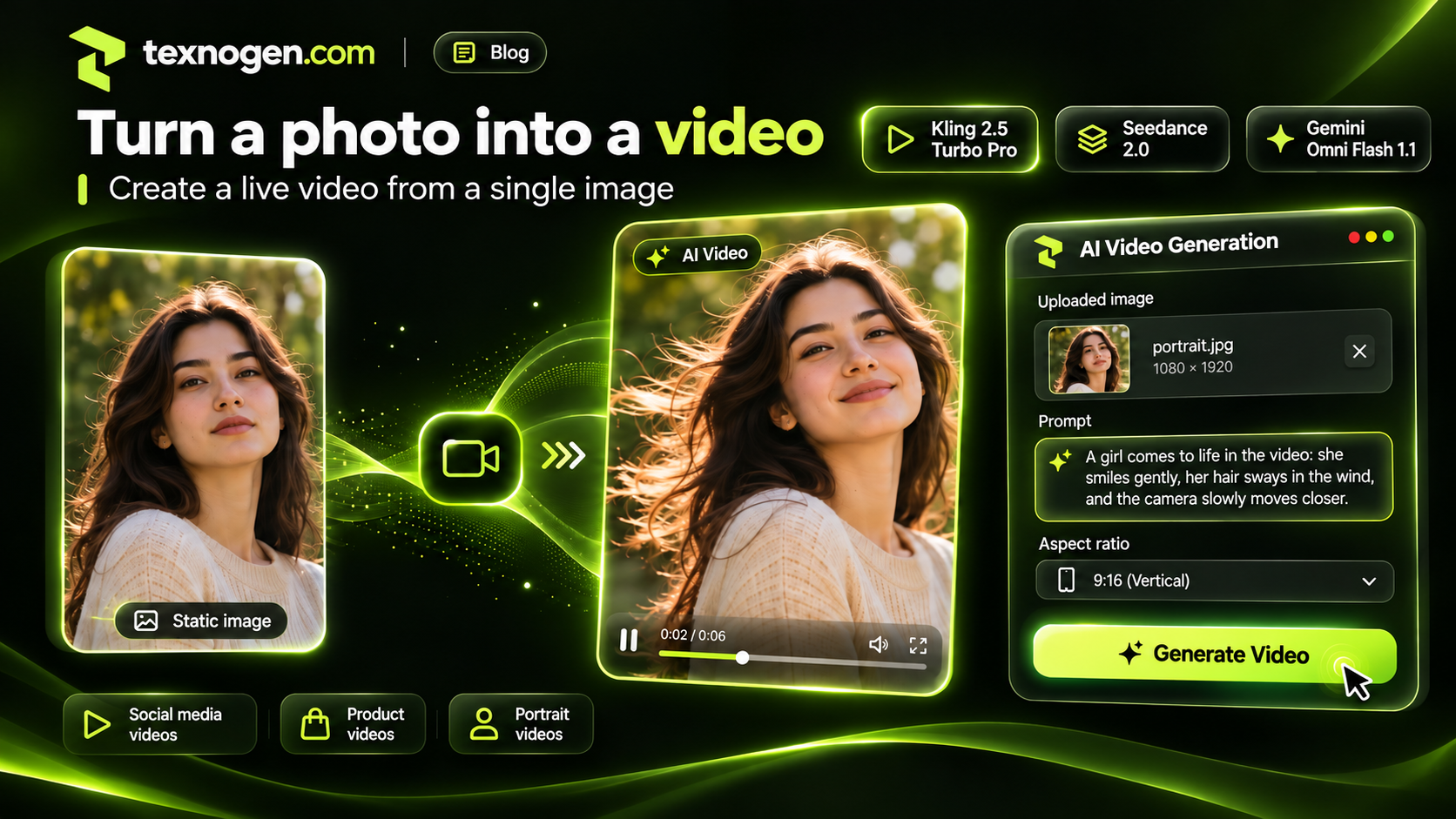
You can turn a single photo into a lively video in just a few minutes: a person smiles, their hair sways in the wind, the camera slowly zooms in. You don't need video editing software or a camera—just provide an image and a short description to an AI. Below, we'll show you how to do this step-by-step using the Texnogen studio.
What is Image to Video?
This method, known as "image to video," involves uploading a ready-made image. The AI then understands the people, objects, and background in the image and adds movement to them. The result is a short video clip of the scene from your picture.
This method is especially useful for:
- Eye-catching short videos for Instagram and TikTok
- Product advertising: bringing a simple product photo to life
- "Animating" old family photos
- Creating beautiful visuals for blogs and presentations
Which Model Should You Choose?
Texnogen offers several powerful video models, each with its unique strengths:
- Kling 2.5 Turbo Pro — Fast and produces natural movements. It's the best choice for most people to start with.
- Seedance 2.0 — Excellent for cinematic scenes and smooth camera movements.
- Gemini Omni Flash 1.1 — Google's new video model, which understands various styles well.
You can compare all models on the models page. If you're trying this for the first time, start with Kling 2.5 Turbo Pro.
Steps
- Log in to your Texnogen account and open a video model.
- Upload your image to the designated area.
- In the prompt field, describe what you want to move.
- Select the format (e.g., 9:16 for Reels) and duration.
- Click "Generate" and wait for the result.
The finished video will be saved in your account, ready for you to download and share on social media.
How to Write a Good Prompt
The image itself already shows the scene, so there's no need to re-describe the picture in your prompt. Focus primarily on movement:
- Who or what moves: "the girl smiles and turns her head slightly"
- How the camera moves: "the camera slowly zooms in" or "the camera pans from left to right"
- Environment: "hair gently sways in the wind, leaves flutter in the background"
For example:
The girl smiles at the camera, her hair gently sways in the wind, the camera slowly zooms in, cinematic lighting.
Avoid asking for too many movements in one video. One or two clear actions will yield a more natural result.
What Kind of Image Works Best?
The quality of the result largely depends on the uploaded image:
- Choose a high-quality and clear image. The AI won't see details well in blurry or very small images. If necessary, first upscale the image.
- Keep faces closer. If a person is too far away in the image, their face might distort.
- Keep the background simple. If there are too many small objects, they might "mix up" during movement.
- Consider the format beforehand. If you upload a vertical image for Reels, the result will look more natural.
Common Mistakes
- Redescribing the image in the prompt. Instead of writing "A girl with black hair in a white dress," describe what you want her to do.
- Contradictory instructions. "The camera zooms in and out"—the AI will try to do both, and the result will look strange.
- Stopping at the first result. Slightly modify your prompt, generate 2-3 variations, and choose the best one.
Frequently Asked Questions
How long does it take to convert an image to video?
Usually a few minutes. The time depends on the chosen model, video duration, and queue.
Can I do this on my phone?
Yes. Texnogen works in a browser, so you can upload images and create videos from your phone.
Which model is the best?
There isn't a single "best" model. For fast and stable results, try Kling 2.5 Turbo Pro. For cinematic scenes, try Seedance 2.0.
Conclusion
Converting an image to video is one of the easiest ways to create content quickly and affordably. Choose a high-quality image, clearly describe the movement in your prompt, and experiment with several variations. To get started, open Kling 2.5 Turbo Pro.